


Hit Tab to Search within Google Chrome Address Bar “Omnibox”

Just a little tip you can put into use when searching sites that you’ve previously visited in the Chrome address bar also known as the Omnibox.
It seems to work only on websites like Google.com, Facebook, Youtube, that we all frequently visit. Each time you start typing the name of any website you often visit, say google.com in Omnibox, after the first letters the Chrome address bar suggests the name of the site with auto-complete. In the case of some websites like those mentioned above omnibox also offers the option to search the site.
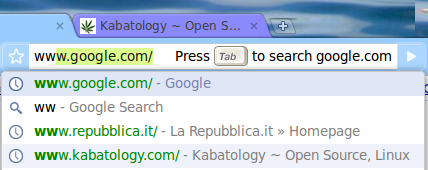
With that “Press Tab to search …” on, hit the Tab key on your keyboard and transform the address bar into a search box.
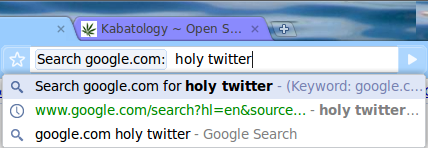
This function powers-up omnibox and saves you a few more clicks when you find it necessary to search within certain sites.
You can easily try this on those sites mentioned above, it seems it take a bit more time to come on other web sites.
3:23 pm on September 6th, 2009
Hit Tab to Search within Google Chrome Address Bar “Omnibox” http://bit.ly/10mris #Chrome
6:38 am on September 7th, 2009
Thanks for the post!
I deleted my Omnibox options could you please post the URL settings (Options -> Default Search -> Google -> URL)
Thanks
9:21 am on September 8th, 2009
Hit Tab to Search within Google Chrome Address Bar “Omnibox” http://bit.ly/vLebO
9:40 pm on September 15th, 2009
[…] gets Better: Omnipresent Omnibox gets an optimized drop-down menu with little icons to help you distinguish between suggested sites, […]
8:58 am on September 17th, 2009
Hit Tab to Search within Google Chrome Address Bar “Omnibox” http://bit.ly/10mris
10:23 pm on September 15th, 2010
http://code.google.com/p/chromium/issues/detail?id=18251